Windows 11 has a built-in dark mode that changes the look of Windows and supported apps. It can also be easier on the eyes, especially when you’re using your PC at night.
Here’s how to turn it on.
Turn on Dark Mode
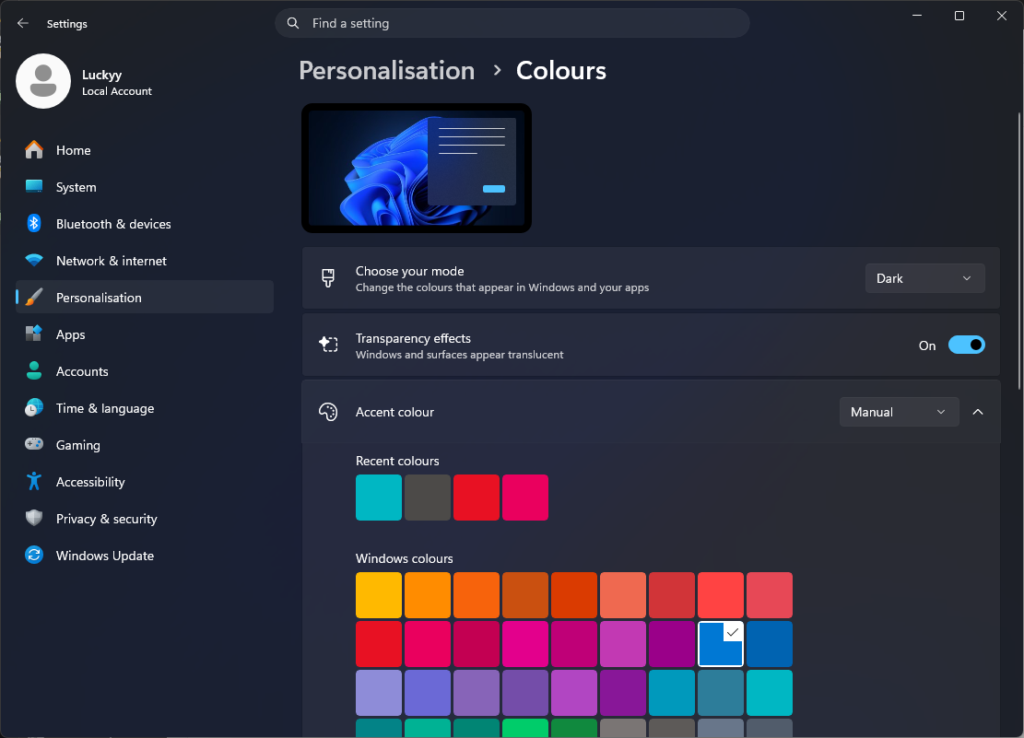
- Right-click an empty space on your desktop.
- Select Personalize.
- Click Colors.
- Find Choose your mode.
- Select Dark.
Windows will switch to dark mode straight away.
Use Light Mode Again
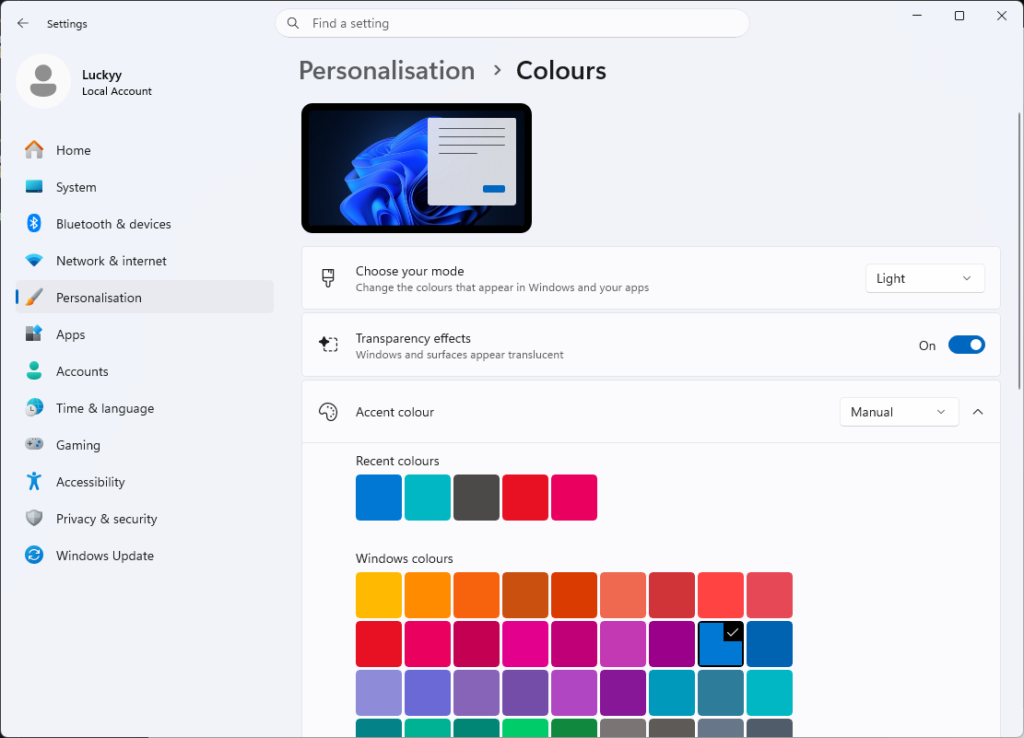
If you decide you prefer the normal Windows appearance, go back to:
Settings → Personalization → Colors
Under Choose your mode, select Light.
Dark Mode for Windows and Apps
Windows 11 also gives you the option to control Windows and apps separately.
Under Choose your mode, select Custom.
You’ll then see options for:
- Choose your default Windows mode
- Choose your default app mode
This lets you keep Windows dark while using light mode in supported apps, or the other way around.
That’s It
Dark mode only takes a few seconds to enable, and you can switch between light and dark whenever you want.
If you’re using Windows 11 at night, it’s worth giving it a try.
Latest Posts