
Post Navigation
2 mins read
Copy link
Copied
Want to see what’s inside your PC? Windows has several built-in ways to check your processor, RAM, graphics card, storage and other specifications.
Check Your Main PC Specs
The quickest way is through Settings.
- Press Windows + I.
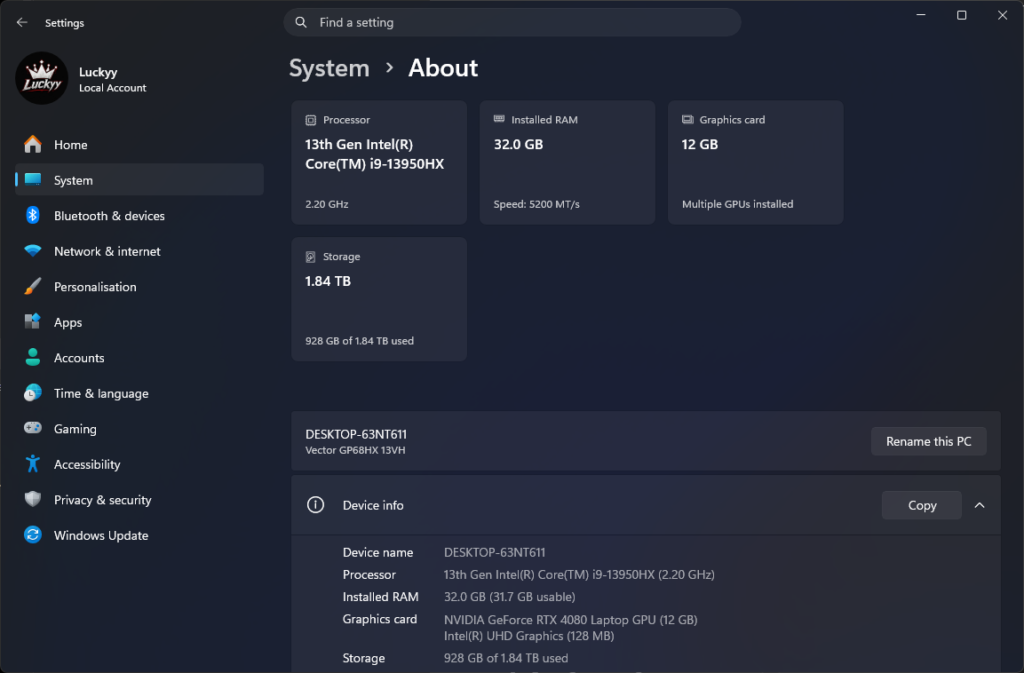
- Click System.
- Select About.
- Under Device specifications, you’ll see your:
- Processor
- Installed RAM
- System type
You can also find your Windows version under Windows specifications.
Check Your Graphics Card
To see your GPU:
- Right-click the Start button.
- Select Task Manager.
- Click Performance.
- Select GPU.
You’ll see your graphics card model and memory.
Check Your Storage
To see your available storage:
- Open Settings.
- Go to System → Storage.
- You’ll see how much storage you’re using and how much is available.
You can also open File Explorer → This PC to see your drives.
Check Detailed PC Information
For more detailed information about your PC:
- Press Windows + R.
- Type msinfo32.
- Press Enter.
System Information shows details such as your processor, motherboard, RAM, BIOS and Windows version.
Check Your PC With DirectX
You can also use the DirectX Diagnostic Tool.
- Press Windows + R.
- Type dxdiag.
- Press Enter.
- Use the System and Display tabs to view your hardware information.
Quick Reference
| What you want to check | Where to look |
|---|---|
| CPU | Settings → System → About |
| RAM | Settings → System → About |
| GPU | Task Manager → Performance → GPU |
| Storage | Settings → System → Storage |
| Motherboard | System Information |
| BIOS | System Information |
| DirectX | dxdiag |
Which Method Should You Use?
For basic PC specifications, Settings → System → About is the quickest option.
For more detailed information, use System Information or dxdiag.

Latest Posts