
Post Navigation
1 min read
Copy link
Copied
Forgot your Wi-Fi password? If your Windows PC is already connected to the network, you can view the saved password in a few steps.
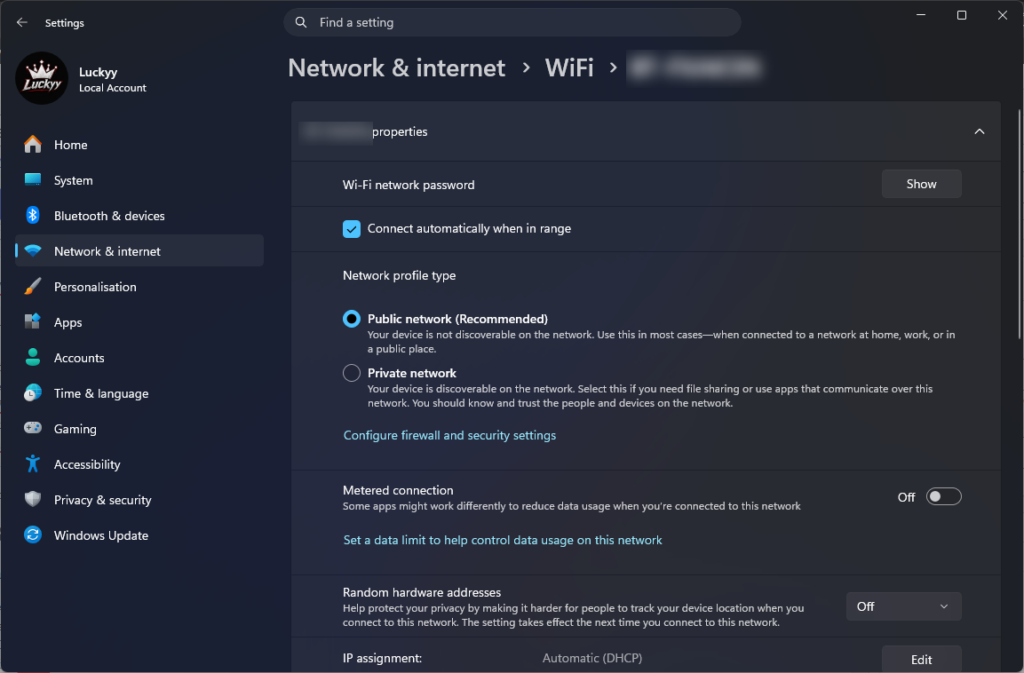
View Your Wi-Fi Password
- Press Windows + I to open Settings.
- Click Network & internet.
- Select Wi-Fi.
- Click your connected Wi-Fi network.
- Find Wi-Fi network password.
- Click Show to reveal the password.
View a Saved Wi-Fi Password
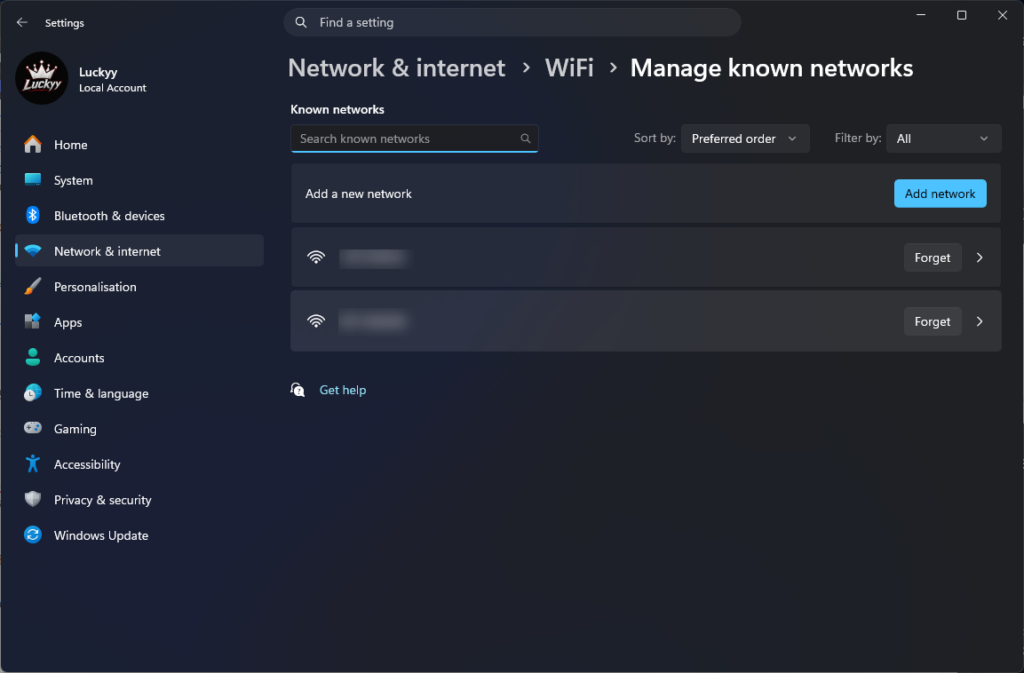
If you’re not currently connected but the network is saved on your PC:
- Open Settings.
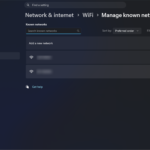
- Go to Network & internet → Wi-Fi.
- Select Manage known networks.
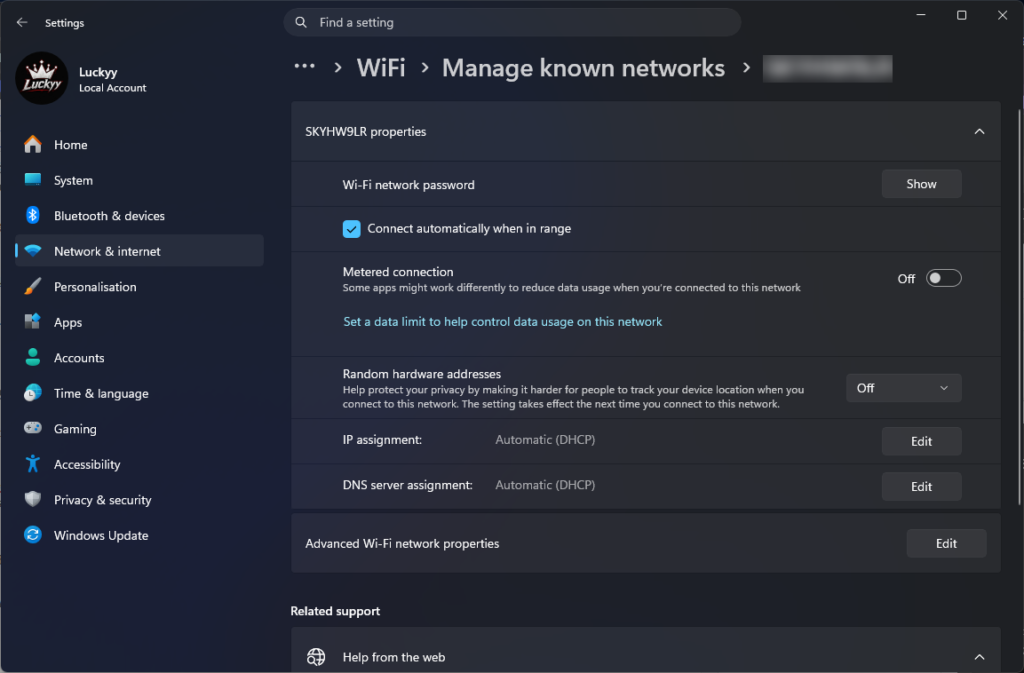
- Choose the Wi-Fi network.
- Click View Wi-Fi security key.
- Select Show to reveal the password.
If You’re Using Windows 10
The quickest method is:
- Open Control Panel.
- Select Network and Internet → Network and Sharing Center.
- Click your Wi-Fi connection.
- Select Wireless Properties.
- Open the Security tab.
- Tick Show characters.
Your Wi-Fi password will appear in the Network security key box.

Latest Posts